Monday, December 24, 2007

Antivirus collection


Nod 32


ESET NOD32 Antivirus System - Integrated, Real-Time Protection against viruses, worms, trojans, spyware, adware, phishing, and hackers. Best detection, fastest performance & smallest footprint. NOD32 Antivirus System provides well balanced, state-of-the-art protection against threats endangering your PC and enterprise systems running various platforms from Microsoft Windows, through a number of UNIX/Linux, Novell, MS DOS operating systems to Microsoft Exchange Server, Lotus Domino and other mail servers.

# Proactive Detection - Using ThreatSense technology, ESET NOD32 Antivirus proactively protects against known and unknown malware and is exceptionally proficient at detecting malicious behavior and protecting your system.
# Extremely light system footprint - ESET NOD32 Antivirus Version 3.0 is a smartly engineered security solution that ensures a fast startup and smooth efficient running of your computer.
# Fastest Scanning - ESET NOD32 Antivirus Version 3.0 does not slow your computer down as it scans files to ensure your computer is safe. You are free to enjoy the sharing files, photos, surf or even play games with little to no impact on your experience - while remaining safe.

A quick and easy installation process means even the novice computer user can ensure their system is safe. ESET NOD32 Antivirus Version 3.0 runs in the background, freeing you and your family to enjoy a safe and protected computer experience.

DOWNLOAD NOD 32


NORTON 2007


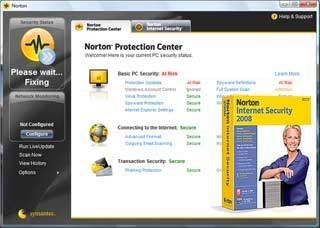
Stay protected from the latest online threats. Norton Internet Security 2008 runs quietly in the background to detect and block today’s complex threats and to protect your identity when you buy, bank, or browse online. The friendly and efficient product design helps minimize confusing security alerts and system slowdowns that can get in the way of your online experience.

Norton Internet Security™ 2008 provides essential protection from viruses, hackers, spyware, spam and other privacy threats. A comprehensive set of security tools, Norton Internet Security helps keep you safe online as you surf and email, swap files, download programs, and chat. In addition to protecting against viruses and unwelcome intrusions from the Internet, NIS also allows you to automatically block annoying banner ads and pop-up windows, set up parental site blocking options for restricting access to specific Web sites, and selectively determine which, if any, Java applets and ActiveX controls should be allowed to download and execute on your computer. Enjoy the Internet with award-winning protection!

Key Technologies
* Antispyware
* Antivirus
* Two-Way Firewall
* Advanced Phishing Protection
* Intrusion Prevention
* Rootkit Detection

DOWNLOAD NORTON 2008

BITDEFENDER 2008


The purpose of the Antivirus module is to ensure detection and removal of all viruses in the wild. BitDefender Antivirus uses robust scan engines certified by ICSA Labs, Virus Bulletin, Checkmark, CheckVir and TUV. IMPROVED Proactive Detection B-HAVE (Behavioral Heuristic Analyzer in Virtual Environments) emulates a virtual computer-inside-a-computer where pieces of software are run in order to check for potential malware behavior. This BitDefender proprietary technology represents a new security layer that keeps the operating system safe from unknown viruses by detecting malicious pieces of code for which signatures have not yet been released.

Permanent Antivirus Protection
The new and improved BitDefender scanning engines will scan and disinfect infected files on access, minimizing data loss. Infected documents can now be recovered instead of being deleted.

NEW Rootkit Detection and Removal
A new BitDefender module looks for rootkits (malicious programs designed to control victim computers, while staying hidden) and removes them on detection.

NEW Web Scanning
Web traffic is now filtered in real time even before reaching your browser, providing a safe and enjoyable web experience.

Peer-2-Peer and IM Applications Protection
Filters against viruses that spread via instant messaging and file sharing software applications.

Full E-mail Protection
BitDefender runs on the POP3/SMTP protocol level, filtering incoming and outgoing e-mail messages, regardless of the e-mail client used (MS Outlook, MS Outlook Express, Netscape, Pegasus, The Bat, etc.), without any additional configuration.

Monday, October 29, 2007

google talk tricks

OPEN GTALK WITH MORE THAN 1 ACCOUNT !!!!!!!!!!

To edit existing Google Talk shortcut:

1)Right click on the Google Talk shortcut.
2)On the right click contextual menu, click on Properties.
3)Go to Shortcut tab on Google Talk Properties window.
4)On the Target textbox, add in the /nomutex to the end of the line so that it looks like below (or you can simply copy and paste the below syntax and replace the original).
“c:\program files\google\google talk\googletalk.exe” /nomutex

5)Click on OK.
To create a new shortcut for Google Talk:

1)Right-click on the desktop or anywhere you want to place the GTalk shortcut.
2)Select New on the right click context menu.
3)Then select Shortcut.
4)Copy and paste the following line to the text box when prompted to type the location of the item:
“c:\program files\google\google talk\googletalk.exe” /nomutex

5)Click on Next.
6)Give the shortcut a proper name such as Google Talk or Google
Talk Multiple or Google Talk Polygamy.
8)Click OK until you are done.
If you have hex editor, you can act like a hacker and modify the bits in Google Talk program so that it will always allow multiple instances of GTalk to be launched whether the /nomutex switch is specified or not.

Launch hex editor and open googletalk.exe, then search for the following patterns in the hex editor:

004536FD . 3BC6 CMP EAX,ESI
004536FF . 75 05 JNZ SHORT googleta.00453706

Modify the string to look like the following:

004536FD . 8BC1 MOV EAX,ECX
004536FF . EB 05 JMP SHORT googleta.00453706

.

  • Registry Tweaks
    You can edit most settings by opening regedit (start -> regedit),
    and navigating to the key HKEY_CURRENT_USER\Software\Google\Google Talk.
    The "Google/Google Talk" key has several sub-keys that hold different option values:
    Accounts: This one has subkeys for each different account that has logged in on the client. These keys have different values that store the username, password and connection options.
    Autoupdate: Stores the current version information. When the client checks for updates it compares Google's response with these values. If an update is needed, it will download and update the new version.
    Options: This is the most interesting part, where most of the current hacks should be used (keep reading).
    Process: Stores the process ID. Probably used by Google Talk to detect if it's already running or not.
    1.) HKEY_CURRENT_USER\Software\Google\Google Talk\Options\show_pin
    If 1, shows a "pin" next to the minimize button that keeps the windows on top of all the other open windows when clicked.
    2.)HKEY_CURRENT_USER\Software\Google\Google Talk\Options\view_show_taskbutton
    If 0, hides the taskbar button, and leaves the tray icon only, when the window is shown
    3.)HKEY_CURRENT_USER\Software\Google\Google Talk\Options\away_inactive
    If 1, status will be set as Away after the specified number of minutes.
    4.)HKEY_CURRENT_USER\Software\Google\Google Talk\Options\away_screensaver
    If 1, status will be set as Away after the specified number of minutes.
    5.)HKEY_CURRENT_USER\Software\Google\Google Talk\Options\inactive_minutes
    Number of inactive minutes to become away if auto-away is on.

  • How To
    Conference Calls :

    What you need to do to have conference calls: Open up a copy of Google Talk on all computers with which you wish to conference. After one copy is opened make a new shortcut for Google Talk but at the end of it add /nomutex. If you installed it to the default folder then your shortcut should read "C:\Program Files\Google\Google Talk\googletalk.exe" /nomutex. Open 2nd instances of the software on every user's computer. After this start a chain: User 1 should connect on one instance to user 2. User 2 will connect on his second instance to user 3. User 3 will connect using his second instance back to user 1. With this chain everyone is connected to everyone.
  • Nickname & Status Message :
    You can't change your nickname in a way that other people will see it change. Every nickname in the Google Talk contactlist is the part that is before @gmail.com (only the alphabetical characters are used) or the name you chosen for your GMail account. To change the nickname need to go to your Gmail account and change the name there. Choose Settings, Accounts, and then Edit info. Click on the second radio button, and enter your custom name. As a result all of your emails will have that nick as well, there is no way to seperate the two. You can add a website in your custom message, it will be clickable when someone opens a conversation window with you.
  • Play Music :

    It's possible to broadcast music, MP3, etc.. through Google Talk.
    Unplug your microphone. Double click on the speaker icon in the lower right corner. This will open up "Volume Control". Select "Options" and then "Properties". Then check the button next to "Recording" then click OK. You may also have to change your setting under Mixer Device. Now the Recording Control screen should be up. On my computer I selected "Wave Out Mix". Click on the green phone in Google Talk and call your friend.


Keyboard Shortcuts
Ctrl + E - It centralizes the selected text, or the current line.
Ctrl + R - It justifies to the right the selected text, or the current line.
Ctrl + L - It justifies to the left the selected text, or the current line.
Ctrl + I - The same thing does that Tab.
Tab - It is giving the area to each of the windows opened by Google Talk.
Ctrl + Tab - The same thing does that Shift + Tab .
Shift + Tab - The same thing does that Tab but in reverse.
Ctrl + Shift + L -Switch between points, numbers, letters, capital letters, roman numbers and capital roman numbers
Ctrl + 1 (KeyPad) - It does a simple space between the lines.
Ctrl + 2 (KeyPad) - It does a double space between the lines.
Ctrl + 5 (KeyPad) - A space does 1.5 between the lines.
Ctrl + 1 (NumPad) - It goes at the end of the last line.
Ctrl + 7 (NumPad) - It goes at the begin of the last line.
Ctrl + F4 - It closes the current window.
Alt + F4 - It closes the current window.
Alt + Esc - It Minimize all the windows.
Windows + ESC - Open Google Talk (if it's minimized, or in the tray)
F9 - Open Gmail to send an email to the current contact.
F11 - It initiates a telephonic call with your friend.
F12 - It cancels a telephonic call.
Esc - It closes the current window.


  • [HOWTO] Use multiple identities on Google Talk

    Want to run Google Talk with multiple Gmail identities? If you have several Google Gmail accounts you also may want to run multiple instances of Google Talk This is especially important for families that share a single PC. Nothing worse than a family member signing you out so they can sign in under their own account!
    Basically, to have "Google Polygamy" you need to run Google Talk with the following switch: /nomutex
    Step 1: Right-click on the desktop
    Step 2: Select New
    Step 3: Select Shortcut
    Step 4: Paste this into the text box:
    "c:\program files\google\google talk\googletalk.exe" /nomutex
    Step 5: Click Next and choose a shortcut name such as Google Talk1, Google Talk2, or something related to your Gmail account for easy remembering which account is which.
    Step 6: Click OK a few times.


  • 12/8/2006 10:20 PM


    Emotions :
    :-|
    :-O
    :-x
    :-P
    :-D
    ;-)
    :-(
    :-)
    B-)
    :'(
    :|
    :O
    :x
    :P
    :D
    :)
    :(
    :)


    [HOWTO] Use Google Talk via a Web Browser
    You want to use Google Talk anywhere ? Follow these guidelines :)
    Step 1: Opens your favorite web browser at the following address :
    http://www.webjabber.net:8080/jim/
    Step 2: Follow the instructions of the Page.
    Step 3: You can talk with your friends
    Google's Secret Command-Line Parameters
    There are a few secret parameters you can add to Google Talk and make it function differently.
    The most important, I think, is /nomutex, which allows you to run more than one instance of GT. Here are the others:
    /nomutex: allows you to open more than one instance of Google Talk
    /autostart: when Google Talk is run with this parameter, it will check the registry settings to see if it needs to be started or not. If the "Start automatically with Windows" option is unchecked, it won't start.
    /forcestart: same as /autostart, but forces it to start no matter what option was set.
    /S upgrade: Used when upgrading Google Talk
    /register: registers Google Talk in the registry, includig the GMail Compose method.
    /checkupdate: check for newer versions
    /plaintextauth: uses plain authentication mechanism instead then Google's GAIA mechanism. Used for testing the plain method on Google's servers.
    /nogaiaauth: disables GAIA authentication method. The same as above.
    /factoryreset: set settings back to default.
    /gaiaserver servername.com: uses a different GAIA server to connect to Google Talk. Used for debug purposes only, there are no other known GAIA servers.
    /mailto email@host.com: send an email with Gmail
    /diag: start Google Talk in diagnostic mode
    /log: probably has something to do with the diagnostic logging
    /unregister: ?
    /embedding: ?
    To add these, open up your GT shortcut, and where it says "Target:" add one or more of these inside the quotations, but after the .exe part.

  • starting---
    Change the font size
    -
    - While holding the control key, move the scroll wheel on your mouse either up or down. This trick works while being focused in either the read or write area.


    Insert line breaks -
    .
    - If you want to have a message that spans multiple paragraphs, just hold shift and hit enter. You can add as many new lines as you want to create.


    Bold Text -
    - To write something bold, you can use an asterisk before and after the word, like *this* .
    Italic Text - To use italics, use an underscore before an after the word, like _this_ .


    Switch windows -
    - Hitting tab will cycle through open windows. It will select minimized conversations, to expand them just hit enter. If you just want to cycle through IM's and don't care about the buddy list, control-tab will do that and will automatically expand a minimized conversation if you settle on one.


    Invitation Tips -
    Tips - You don’t need to say Yes or No when someone wants to add you as a friend; you can simply ignore it, the request will go away. (On the other hand, someone with whom you chat often will automatically turn to be your friend, unless you disable this in the options). ]


    Show Hyperlinks -
    - You can show your homepage or blog URL simply by entering the it in your away message (at the top of the main window). It will automatically turn to a link visible to others.
  • CRACKING XP PASSWORD:-
    In case of user password boot the pc in safemode by pressing the F8 key and then selecting the Safe Mode option. You can now logon as an administrator and XP wont prompt for the password. Incase of an administrator account try rebooting the pc in DOS. access C:\Windows\system32\config\sam . Rename SAM as SAM.mj
    Now XP wont ask for password next time You Login. Also

    Go to the cmd prompt .
    Type net user *.
    It will list all the users.
    Again type net user "administrator" or the name of the administrator "name" *.
    e.g.: net user aaaaaa *(where aaaaaa is the name).
    It will ask for the password.
    Type the password and there you are done.
    Logging In As Administrator:

    Hold the Ctrl-Alt key and press Del twice. This will bring up the normal login and you can log on as Administrator.

    To unhide the Administrator account so it does show up:

    Start Regedit

    Go to HKEY_LOCAL_MACHINE \ SOFTWARE \ Microsoft \ Windows NT \ CurrentVersion \ Winlogon \ SpecialAccounts \ UserList

    Unhide the Administrator key by giving it a value of 1


Monday, June 4, 2007

Softwares

Download Top 10 Anti Virus Full Version For Free

Antivirus is the most important security feature that every computers should have. With antivirus, your computers are protected from being attack and destroy by viruses, worms, trojans, spams, etc. But what is the best antivirus solution for your computers? The best line of defense against computer viruses, spyware, hackers and spam is BitDefender’s newest version 10, our #1 ranked anti–virus software and winner of “TopTenREVIEWS Gold Award.” BitDefender 10 is an outstanding product with a user–friendly interface that will scan all existing files on your computer, all incoming and outgoing emails, IM transfers and all other network traffic.

Based on the ranking here is the list of top 10 anti virus,click to download

1) BitDefender 10 - 99.23%

2) Kaspersky version 6.0.2.614 - 99.13%

3) F-Secure Anti-Virus 2007 - 99.13%

4) PC-cillin - 99.03%

5) ESET Nod32 - 98.56%

6) McAfee VirusScan 9.0 - 97.70%

7) Norton AntiVirus - 96.59%

8) AVG Anti-Virus Pro - 95.80%

9) CA Antivirus - 94.43%


10) Norman Virus Control - 94.00%


1) BitDefender 10


BitDefender’s customizable settings make the program effective for a variety of users. For example, if you receive legitimate commercial email, you can set BitDefender’s spam filters to allow specific or all emails.

Virus Bulletin rated BitDefender a VB100%, the highest honor for anti–virus software.
The VB 100% logo is awarded to anti–virus products that detect all current “in the wild” viruses during both on–demand and on–access scanning in Virus Bulletin’s comparative tests.

Additionally, BitDefender passed the ICSA 2005—a similar test that certifies the software can detect viruses, prevent virus replication, and doesn’t generate false positives.

download
rar password :www.theynd.com

F-Secure Anti-Virus 2007

There are more than 200 000 different computer viruses in the wild and 40 new ones are found every day. Nor is there any sign that these numbers would decrease in the future. Quite on the contrary, new methods for attacking innocent computer users are invented all the time. Spyware and hidden rootkits are used to steal private and confidential data. An infection in a corporate network also causes losses because of unnecessary downtime and end user frustration. A good security solution does its job silently in the background but must also be ready to take immediate action when called for. F-Secure® Anti-Virus™ for Workstations version 7 protects laptops and desktops against viruses in real-time. It includes powerful integrated anti-spyware functionality and F-Secure Blacklight™, a proprietary technology against concealed rootkits. F-Secure Anti-Virus for Workstations protects both site-based and remote workers ensuring maximum system availability and data integrity. F-Secure Anti-Virus for Workstations can be installed, configured and managed by F-Secure Policy Manager.

download
rar password : AdaMskI